

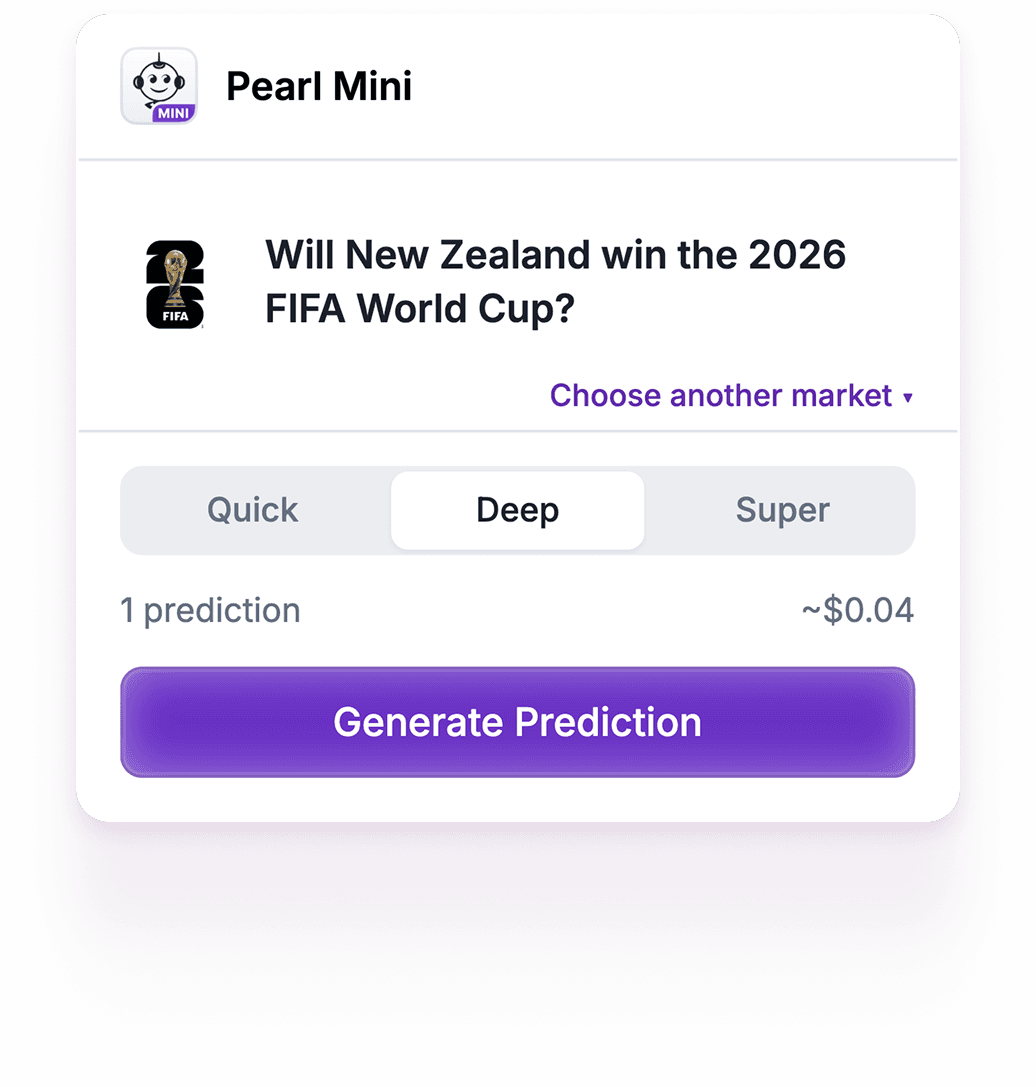
Pearl Mini: AI-powered Predictions That Can Provide an Edge
AI-powered insights for Polymarket, right in your browser.
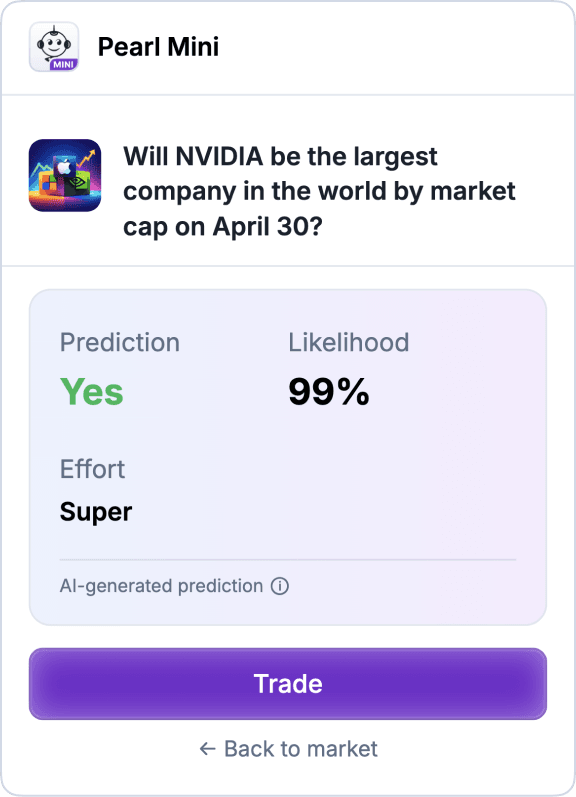
Pearl Mini sits inside Polymarket as you browse. It can see the market you're looking at, generate an AI prediction, and let you act on it in one click: there's no app to download, no tab switching and no manual research required.
Predictions are informational only and can be wrong. Trading on prediction markets involves risk — you can lose the funds you deposit.
Available on Chromium-based browsers: Chrome, Brave, Edge, or Arc.
Available on Chromium-based browsers: Chrome, Brave, Edge, or Arc.
Pearl Mini is available on desktop. Visit the page from desktop to download the extension.
Operating on

Powered by

AI payments on


Secured by


Why Pearl Mini?
AI predictions, where you already are. No app. No tab-switching. Pearl Mini works directly on Polymarket: read a market, get an AI-generated insight about the possible outcome and trade, all without leaving the page.

Trade in one click

Smarter than gut feel

Your funds, your control

Works where you already are


Simple and quick setup

Pay-as-you-predict
Ready to launch?
Set Pearl Mini up in minutes.
Step 1:
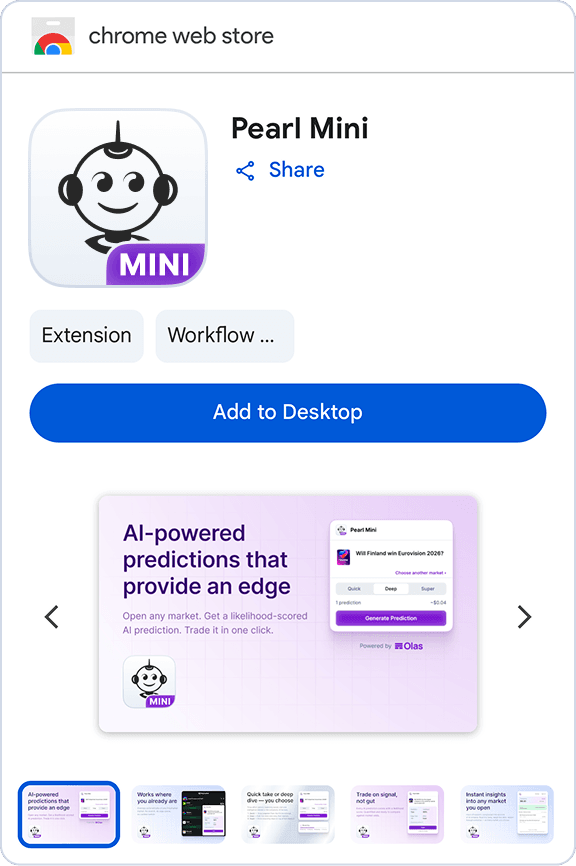
Install from the Chrome Web Store
Add Pearl Mini to Chrome. Visit any Polymarket event page and the Pearl Mini icon appears automatically.
Pearl Mini is available on desktop. Visit the page from desktop to download the extension.


Step 2:
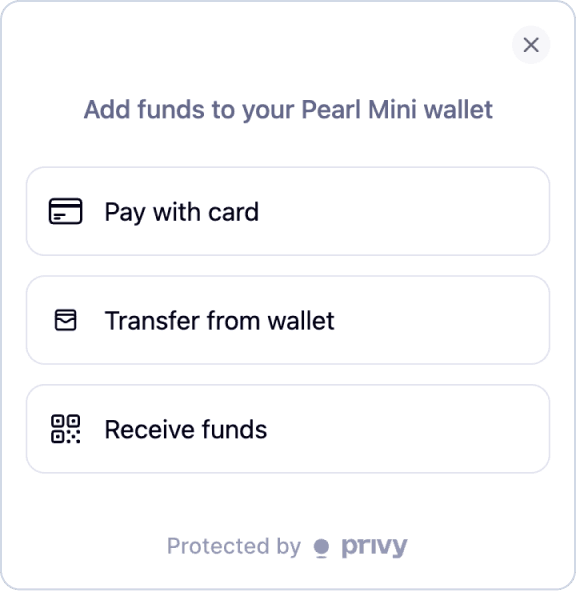
Sign in and fund your agent
Authenticate via email in seconds. Fund your agent wallet using USDC. No native gas token required. Only deposit funds you can afford to lose.
Step 3:
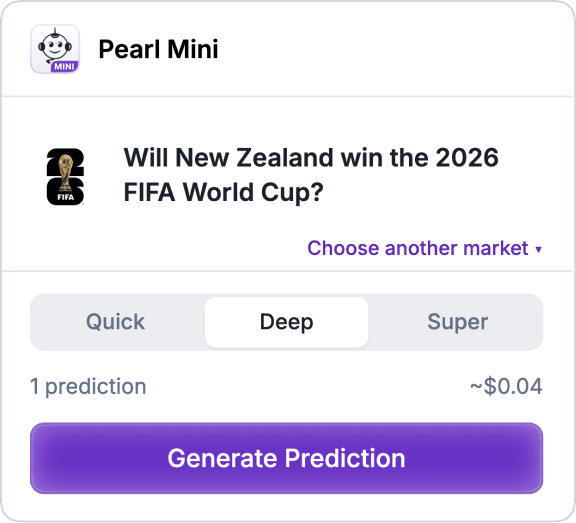
Generate your first prediction
Click "Generate Prediction" on any Polymarket market. You’ll get an AI-generated prediction about the event, at the level of effort you select: Quick, Deep or Super.
Step 4:
Make your trade
Happy with the prediction? Click on a button and your agent executes a trade. Or use the insight to inform your own manual trade. Your call.
Download the beta
Pearl Mini isn't on the Chrome Web Store yet. During the beta you can install it manually by loading the unpacked build in Chrome — follow the steps below. This is a beta running on Polygon mainnet with real funds, so keep amounts small while testing.
- Download the latest beta. Open the Releases page and download the
.zipasset from the most recentextension-v…-betatag. - Extract the zip somewhere stable on your disk — e.g.
~/Documents/pearl-mini/. Don't delete this folder after installing; Chrome loads the extension directly from it. - Open the Chrome extensions page by pasting this into your address bar:
chrome://extensions
- Toggle Developer mode ON using the switch in the top-right of the extensions page.
- Click "Load unpacked" and select the extracted folder (the one containing
manifest.json). - Pin it to your toolbar. Click the puzzle-piece icon in Chrome's toolbar, find Pearl Mini, and click the pin.
Updating: when a newer beta is published, download it from the Releases page, extract it over the old folder, and click the reload icon on the Pearl Mini card in chrome://extensions.
Frequently Asked Questions
- Quick (~$0.02) — Snap judgment from the AI's knowledge.
- Deep (~$0.04) — Pulls live news and data, then reasons.
- Super (~$0.08) — Extra reasoning steps on top of live research.
You can find the "Export key" buttons by opening the extension and clicking the settings icon on your dashboard (available once your account is set up).
- Pearl wallet — Use the "Export key" button next to your Pearl wallet to reveal its private key. You can import it into any wallet extension (e.g., MetaMask) to access its reserve funds on Polygon and Tempo.
- Agent wallet & trading wallet — The agent wallet itself doesn't hold funds directly. Your trading balance lives in your trading wallet, which the agent wallet controls as its signer. To access those funds, export the agent wallet key, import it into a wallet extension (e.g., MetaMask), then open the Safe web app at app.safe.global, load your trading wallet address on Polygon, and connect with the imported agent wallet to sign withdrawals or other transactions.
Have an issue to report?